Activation Guide – Plane Project Management Tool
Sender Email: [email protected]
Purpose: Activate your account and join your hotel workspace.
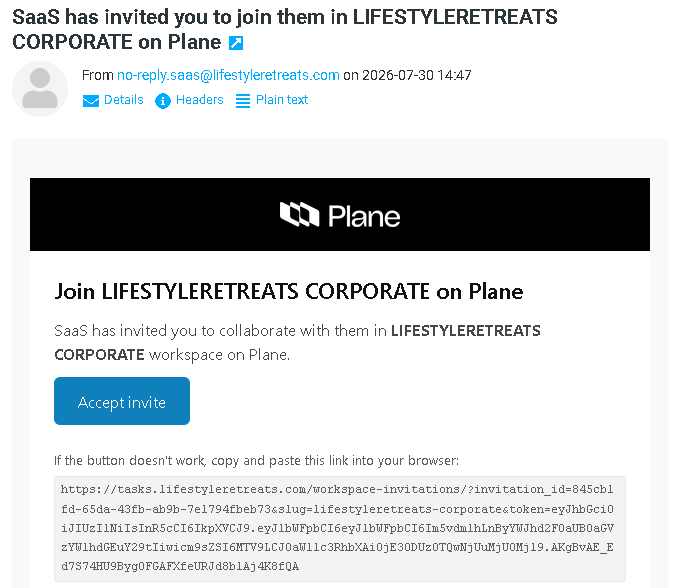
Step 1 – Invitation Email
- Look for an email from [email protected].
- Subject line: “SaaS has invited you to join them in – [Hotel Name]”.
- Open the email and click Accept Invite.
Step 2 – Account Activation
Choose one of two options:
- Create Password
- Enter your email address.
- Set a secure password.
- Confirm and log in.
- Unique Key Login (OTP)
- Enter your email address.
- Receive a one‑time code (OTP) via email.
- Enter the code to log in.
- No password required.
Step 3 – Workspace Access
- After activation, you will be placed in your hotel workspace (e.g., The Bale Nusa Dua, Ize Seminyak).
- Inside the workspace, you will see department projects (Housekeeping, Engineering, Finance, HR, IT, Sustainability).
Step 4 – First Login Checklist
- Confirm workspace → Verify you are in the correct hotel workspace.
- Explore projects → Open your department project.
- Check modules → Review active modules.
- View work items → See tasks assigned to your department.
Step 5 – Training Session
- Attend the scheduled training session.
- Learn how to use Workspaces, Projects, Modules, Work Items, Sub‑Work Items, Intake, Relate To.
- Participate in hands‑on exercises with other departments.
Step 6 – Post‑Training Practice
- Continue practicing in your workspace.
- Submit feedback to improve workflows.
- Prepare for staff rollout (next phase).